Braintree Payment Module
Braintree is a payment module used to take credit card payments and accept electronic on your website. Starting with Miva 10.13.00, the Braintree module supports sending a custom order_id. Braintree is owned by PayPal.
Braintree supports the use of MivaPay Vault.
On This Page
- Installing the Module
- Configuration
- Using PayPal and Braintree
- Collecting Device Data (Fraud Prevention)
- 3D Secure
Installing the Module
Payment modules are located under Settings in the lower left corner, then click on Modules.
Path: Settings > Modules
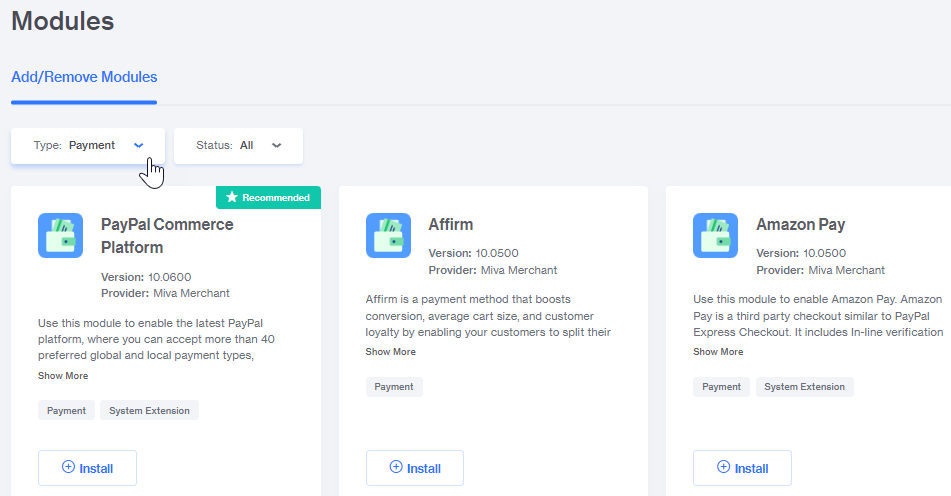
Narrow the module options by clicking the drop down in the “Type” box and then clicking Payment, or use the Search bar to search all Modules, type in paypal.
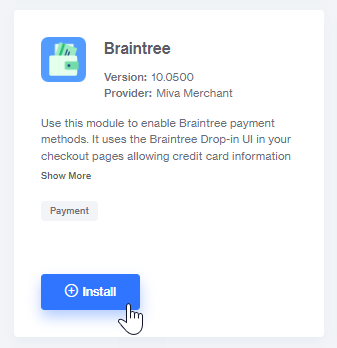
In the Braintree box, click the Install button.
Configuration
After the module is installed the Payment Settings page opens, to the Braintree tab.
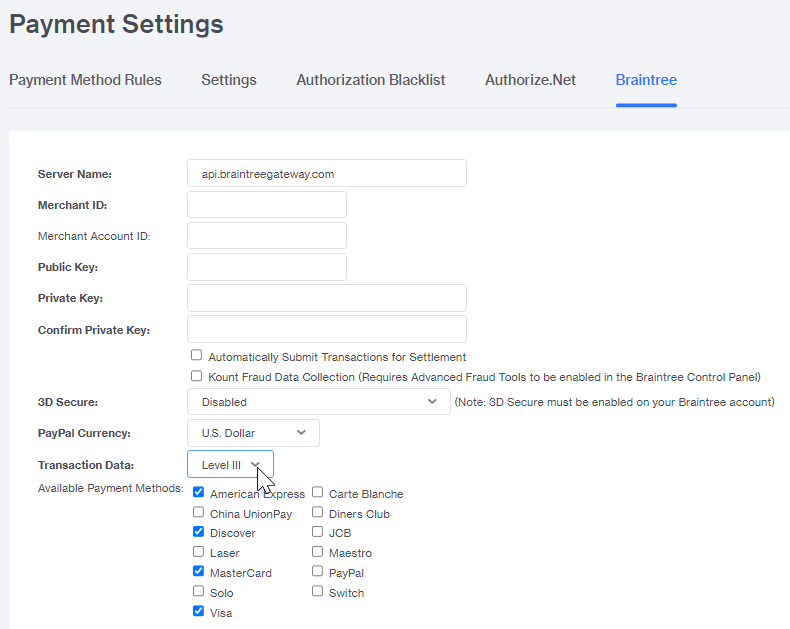
In the tab, credentials for your Braintree account must be entered.
Server Name: For production, the server name, api.braintreegateway.com is automatically entered. For testing, the sandbox name is api.sandbox.braintreegateway.com.
Merchant ID: This is your merchant ID for Braintree. It can be found in your Braintree account, under Settings > API
Merchant Account ID: Braintree has the ability to create multiple Merchant Account IDs under the main Merchant ID. Each Merchant Account ID can be mapped to its own currency within Braintree. This field is optional. Note: While Braintree supports multiple Merchant Account IDs, Miva only supports a single at this time.
To create a new Merchant Account Id in Braintree, go to Path: Settings > Business > Add New Merchant Account ID .
Public Key/Private Key: These API keys are required to connect to the Braintree API. They can be found at Path: Settings > API. After you have entered the key code and clicked update, the box will appear blank, even through the key has been saved.
Automatically Submit Transactions for Settlement: If this box is checked, Miva will do both the authorization and the capture at the time the order is placed. If it is not checked, Miva will only do the authorization on the purchase. You will need to edit the order in the admin, and Capture when the order payment is ready to be captured.
Kount Fraud Data Collection: (see below).
3D Secure: Enable or disable 3D Secure (see below).
PayPal Currency: Sets the currency for PayPal Checkout, if using this option.
Transaction Data: Starting with the 10.07 release, Level II and III Payment Data can be sent, including item level and tax/purchase order data. Visa/Mastercard will give merchants discounts on interchange fees for passing this data on certain transactions, lowering overall interchange fees.
Available Payment Methods: Four payment methods are available by default: American Express, Discover, MasterCard and Visa. Others can be enabled by clicking the respective checkbox.
Custom order_id (10.13.00+)
The Braintree module now supports assigning a custom order_id for transactions using the <mvt:item> tag for Miva Merchant 10.13.00 or later. This is useful for merchants who need to align Miva order IDs with external systems.
Requirements:
First assign the
braintreeitem, the item must be assigned to the Invoice Page Template (INVC) under the items tab. Then add the item to the page template using the syntax below.Note: Order IDs must be 127 characters or fewer. If a longer value is provided, the module will default back to the Miva order ID.
<mvt:item name="braintree" param="Order_ID( g.Invoice_Number )" />
<mvt:item name="braintree" param="Order_ID( '12345' )" />
<mvt:item name="braintree" param="Order_ID( '123-456-789' )" />
Code Explained:
g.Invoice_Number → Passes a global variable (e.g., customer-entered invoice #).
'12345' → Passes a static number.
'123-456-789' → Passes a custom formatted string.
When to Use:
Use this functionality when you need to:
1. Synchronize Miva order IDs with ERP, CRM, or external analytics systems.
2. If you require more meaningful order references in your Braintree account than Miva’s default order numbers.
3. If your business uses invoice numbers provided by customers (e.g., B2B workflows).
Using PayPal and Braintree
Your store can use PayPal Checkout when using Braintree. To enable this, set the PayPal Currency from the drop down and then make sure the PayPal payment method is enabled.
Note:
You can also display the PayPal Checkout button on your store’s basket screen. To do so, you need to set up PayPal Checkout using the PayPal Commerce Platform Integration. For instructions on setting up that integration, click here.
Collecting Device Data (Fraud Prevention)
Braintree has built-in fraud prevention tools which rely on collecting device data, which gets passed in the payment request.
This is accomplished by adding additional device tracker javascript, which is used by Braintree's fraud protection system. For information on implementing this, visit: https://docs.miva.com/miva10/reference-guide/mivapay#fraudprevent
For more information on Braintree and its fraud protection options, visit: https://developer.paypal.com/braintree/articles/guides/fraud-tools/premium/kount-custom .
3D Secure
3D Secure is an additional security layer for online credit and debit card transactions that adds an authentication step for customers making online purchases.
For additional information on 3D secure visit https://developer.paypal.com/braintree/articles/guides/fraud-tools/premium/fraud-protection-advanced.
- Disabled : This is the default state. 3D Secure is turned off for all transactions.
- Required if 3D Secure is Enabled on Card : This is the recommended state to enable 3D Secure. It will only prompt for additional data if the card the customer is using has 3D Secure.
- Always Require 3D Secure : Only use this setting if you want all transactions to go through 3D Secure. IMPORTANT : If this is on, and the customer’s card does not support 3D Secure, the transaction will be declined.
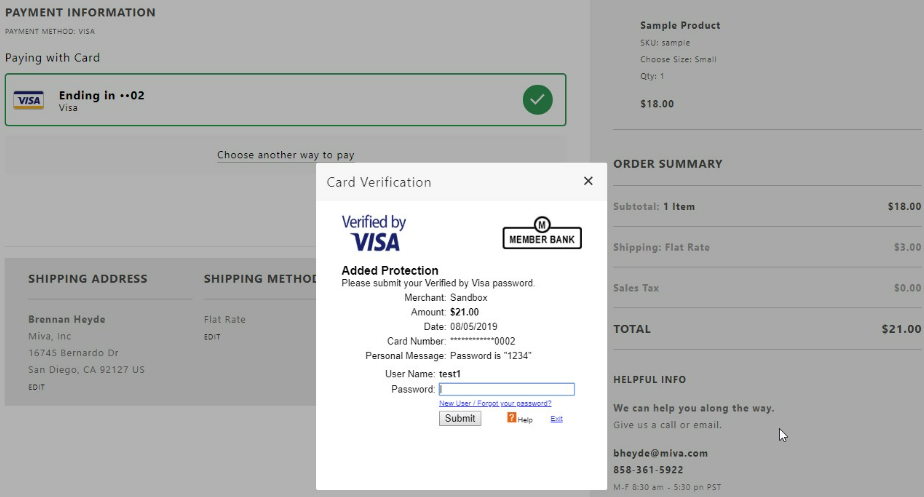
If 3D Secure is enabled, additional fields will be saved with the payment response in the Miva admin. These fields are available via the JSON API as part of the payment record response.
