Abandoned basket emails allow you to send emails to shoppers who added products to their basket but left before completing checkout. In Miva, you can choose when these messages are sent, customize their content, send a series of follow-up emails, track conversions, and even include one-time-use coupon codes.
In order for Miva to be able send an email to an abandoned cart, the email address of the customer must be known. This happens by two different methods:
- The shopper has a customer account and is logged in when they add the product to the cart.
- The shopper provides an email address during checkout but leaves before completing the order.
On This Page
- Configuration Settings
- Scheduled Task
- Customizing the Email Template
- Sending Multiple Emails
- Tracking Abandoned Cart Conversions
- Including One-Time Use Coupons
Configuration Settings
The Abandoned Basket email is managed under User Interface > Emails.
To enable and configure it:
- Locate Abandoned Basket in the email list.
- Turn on the Automatic toggle to allow Miva to send the email automatically.
- Select the email, then click Abandoned Basket in name column.
Settings Guide
Send When Basket
This setting allows you to control when the abandoned basket email should be sent. By default it is 30 minutes after the cart has been abandoned. The word abandoned just references the time since there was last activity on a custom session (last time the customer loaded a page). So 30 minutes since a cart was abandoned means the customer has not clicked anywhere in 30 minutes.
This setting can be adjusted up or down, but it must be lower than your basket timeout. The default basket timeout is 60 minutes. The reason for this is because if was set to 120 minutes and your basket timeout was 60 minutes, If you're also using Scheduled Tasks to delete expired carts, the cart will be deleted before the abandoned cart email can run, thus never getting sent.
Basket Subtotal Range - This allows you to optionally add a subtotal range. For example you could send a completely different abandoned cart email to high value abandoned carts with different messaging and offers.
Keep Basket Alive - When the abandoned basket email gets sent it contains a link to back to the customer's basket. Because of this, you want the basket to still be active when they click this link. By default this value is 2880 minutes which is 48 hours. This means that the basket will be active for 48 hours after the abandoned cart email is sent.
Keep in mind that if you are tracking inventory (and not using inventory at checkout) this will also tie up inventory for 48 hours as well.
Scheduled Task
The abandoned basket emails are initiated by a scheduled task under Store Settings > Scheduled Tasks
Locate the scheduled task and set the operation to "Send Abandoned Basket Emails"
The interval should be less than your Delete Expired Shopping Baskets interval so that the abandoned basket email can run prior to the basket being deleted.
Customizing the Email Template
Change the content of the email by going to User Interface > Templates > Search or scroll to abandoned basket.
Here is an example of a default abandoned basket email template.
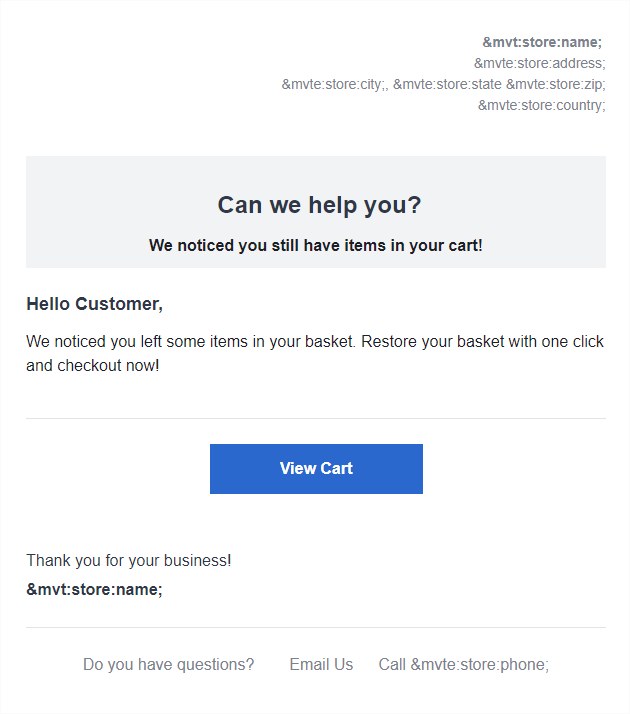
Sending a Multiple Emails
Miva abandoned basket emails allow you to set up a series of email to be sent in succession. For example you could send an email after 30 minutes, 24 hours then 48 hours. Each email would be its own template with unique subject and messaging.
If at any point a customer purchases their basket during this time, all subsequent emails will no longer be sent because the abandoned basket will no longer exist.
Here are the settings you need to setup 3 emails at 30 minutes, 24 hours, and 48 hours.
Create 2 additional email templates so you have a total of 3 abandoned basket email templates
Set the first on with these settings:

This will send the first email after 30 minutes and then set the last update ahead by 1440 minutes or 24 hours.
For the second email, use these settings:

This email won't get set until 24 hours + 45 minutes after the first email. Here the 45 min number is arbitrary, but it does need to he a higher number than the first email as that is how miva determines the order in which to send the emails.
Finally for the 3rd email, set it to the following:

This will send 24 hours + 59 minutes after the second email or a total of 48 hours after the cart was initially abandoned.
Tracking Abandoned Cart Conversions
You'll want to be able to track the effectiveness of your abandoned cart emails. To do this, you will need to use Google Analytics to tag any link from the email back to you site.
Google provides a free tool to help you generate URLs you can include in your emails, to view click here.
The key here is any URL needs the campaign source appended to the URL:
Including One-Time Use Coupons
It allows you Miva to create a one time use, unique coupons code for each customer to entice them to purchase.