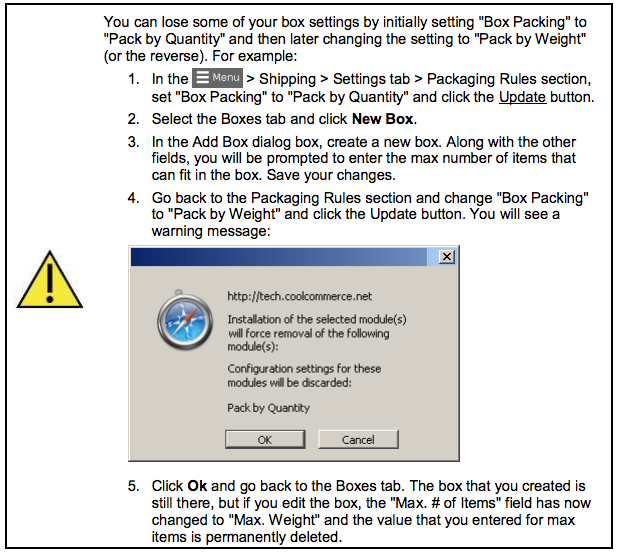
Miva uses box and packaging settings as part of its shipping calculations. The Boxes tab lets you define the boxes you ship with and control how Miva determines package size, weight, and quantity. To access the Boxes tab, go to: Settings > Shipping Settings > Boxes
In this guide, you’ll learn how to:
Understanding Box Packing Methods
Miva supports three Packing Methods:
Fields in the Add Box dialog vary based on the selected Box Packing Method.
Step One: Set Your Packaging Rules
Path: Settings > Shipping Settings > Settings tab > Packaging Rules section
1. Before you add boxes to your Miva store Select your Box Packing method from the drop-down in the Packaging Rules section of the under Settings tab.
This setting determines how Miva calculates shipping and which box fields are available in the Add Box Dialog box in the next step.
2. Remember to set the Fallback Package Dimensions located below the Box Packing drop-down.
Once your packaging rules are set, you can begin adding boxes tailored to your packing strategy.
Box Packing Methods:
- Pack by Weight – Configure boxes by the maximum weight they can hold.
- Pack by Quantity – Set a limit on how many items each box can contain.
- Pack by Cubic Volume – Calculate shipping based on the total volume of products, not individual boxes. Note: This ignores all created boxes, box definitions are not used for this method.
Inventory Variant Handling: control how Miva calculates shipping weights for products with inventory variants. To learn more about how inventory variants work and how to configure them, see the Inventory Variants documentation
Step Two: Add Your Boxes
Path: Settings > Shipping Settings > Boxes tab
Click the New Box button to open the new box dialog box.
Field Definitions for New Boxes:
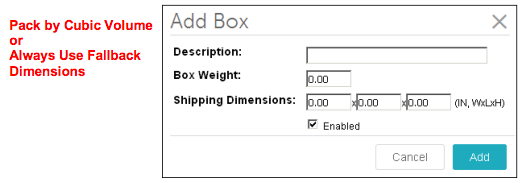
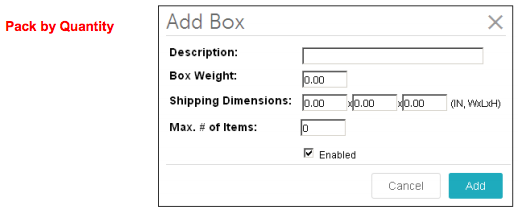
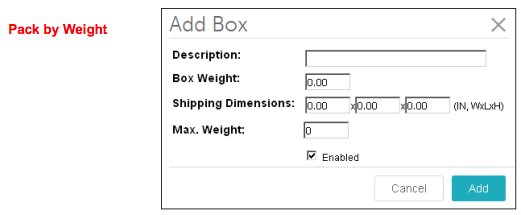
The following fields may appear in the Add Box dialog, depending on the selected Box Packing Method (Pack by Weight, Pack by Quantity, or Pack by Cubic Volume).
- Description: The description here will appear in the admin interface.
- Box Weight: Include the weight of the boxes you use here. Note: that the box weight will affect the shipping rate calculation.
- Shipping Dimensions: Enter the size of the box.
- Max Weight: Enter the maximum weight that this box can hold. You will only see this field if you are using Pack by Weight.
- Max # of Items: Enter the maximum number of items that this box can hold. You will only see this field if you are using Pack by Quantity.
- Enabled: Checking the Enabled box makes your box available to the system. If you uncheck this box, your box settings can be saved, but the box won't be used by Miva Merchant when a customer places an order.
Understanding Box Packing Methods
Pack by Cubic Volume
Pack by Cubic Volume calculates shipping based on the total volume of products, rather than predefined boxes (this ignores all boxes that you create in your Miva store). This method is ideal if your carrier uses dimensional weight pricing, which charges based on package size rather than just weight.
It calculates shipping by creating a single virtual box based on the combined volume of all products in an order. Miva takes the cube root of the total volume to generate a cube-shaped “imaginary” box, which is sent to the carrier for a rate based on dimensional weight.
Enter shipping dimensions for each product, to use this method effectively each product requires an accurate weight.
Here are two ways to achieve this:
1. Manually by going to: PATH: Catalog > Products > Edit Product > Shipping Rules section > and fill in the Shipping Dimensions
2. By importing Shipping Rules to products in bulk using Data Management by following the Import Shipping Rules instructions on the Shipping Settings Documentation. To learn more about Importing and Exporting Data click here.
Important: If product dimensions are missing, Miva assumes the product takes up zero space, which can understate shipping costs. Use Default Product Dimensions as a fallback.
Note: Fallback Package Dimensions are not used with Pack by Cubic Volume.
Understanding Dimensional Weight
Dimensional weight allows carriers to charge based on package size rather than just weight. For example, FedEx may use a dimensional factor like 166 in³/lb to calculate a base charge. A 10" x 10" x 10" box = 1,000 in³ / 166 = 6.02 lbs, rounded up to 7 lbs. You’ll be charged for 7 lbs or the actual weight, whichever is greater.
Dimensional factors vary by:
Carrier
Shipping method
Domestic vs. international
 |
Because Pack by Cubic Volume creates an "imaginary" box, you cannot use it with Box Weight. |
Pack by Quantity
Pack by Quantity define boxes by the maximum number of items they can hold. Ideal for stores with uniformly sized products (e.g., DVDs, books), Miva will automatically select the fewest and smallest boxes needed based on item count.
Set max items per box, and configure Fallback Package Dimensions so Miva always has a backup box size if box settings are missing or invalid.
Exclude Boxes Smaller than Product Dimensions
Prevents Miva from selecting a box that is too small to fit the largest item in the order.
Pack by Weight
Use this method to define boxes by maximum weight capacity. Miva automatically selects the fewest boxes and smallest available box sizes needed to package the order.
To prevent shipping estimate issues, enter Fallback Package Dimensions, this is used if no boxes are available or box weight limits are missing/zero.
Exclude Boxes Smaller than Product Dimensions:
Ensures Miva never selects a box that is physically smaller than the largest item being packed.Include Box Weight in Maximum Weight Calculation:
Subtracts the box’s own weight from its maximum capacity.Example: A 10 pounds box with a 100 pounds max will hold 90 pounds of products when enabled.